How to utilize Messaging & Tasks
GO TO
Log in to your Account
STEPS
- Once logged in, the user will be routed to the Messaging Page> Inbox. On the left side of the page, select the “New” tab.
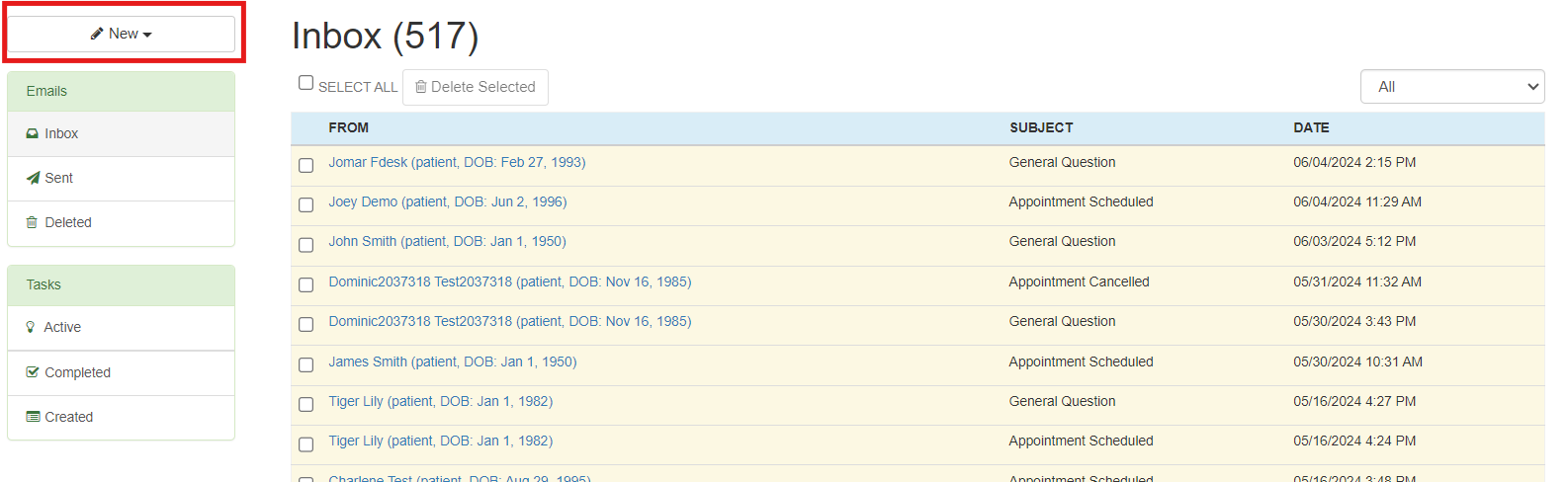
- The user will have 2 dropdown options, Messaging and Tasks.
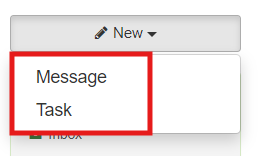
- Selecting Messaging, will allow the user to create and send messages to other users within their practice and as well as to their patients.
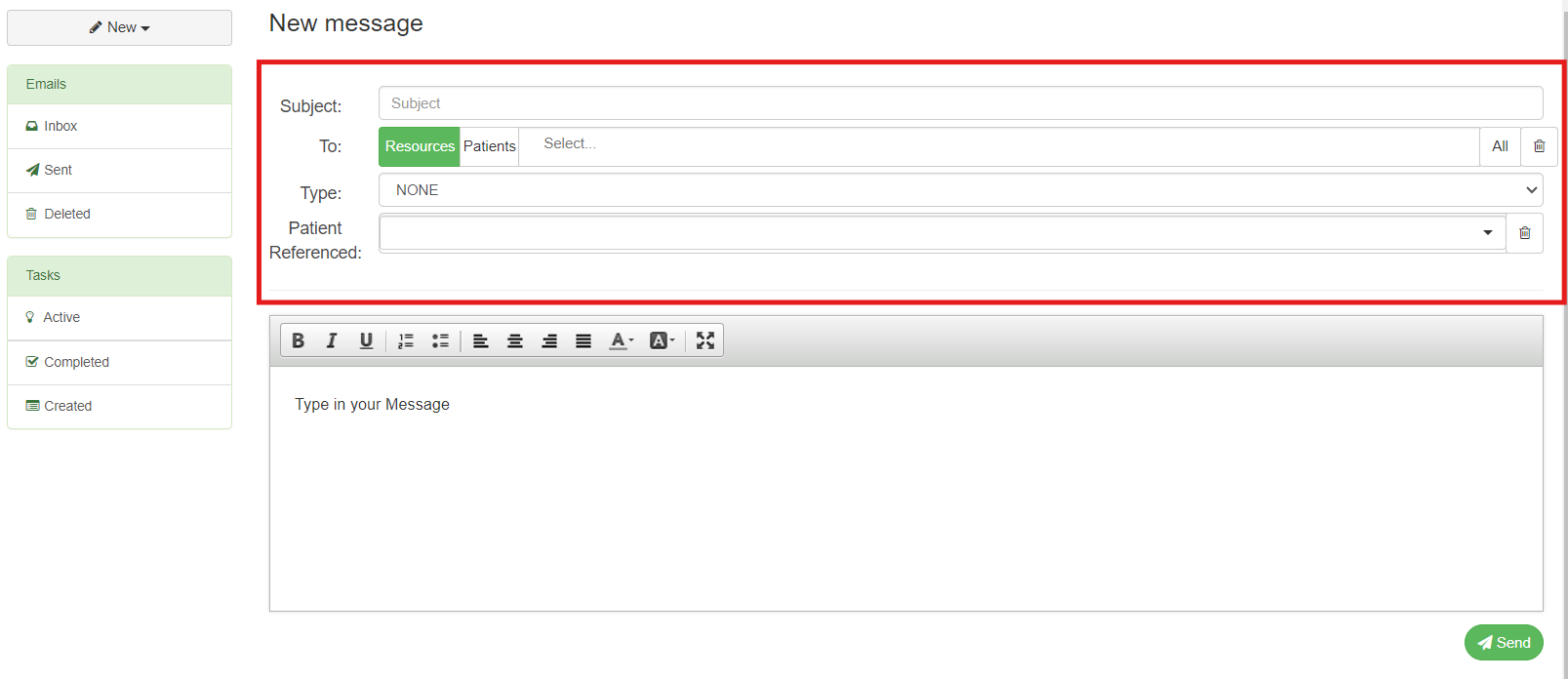
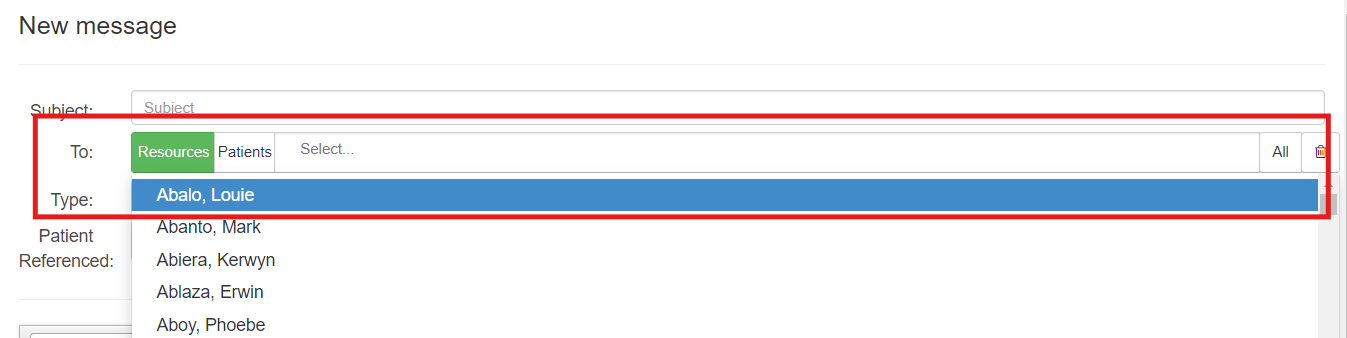
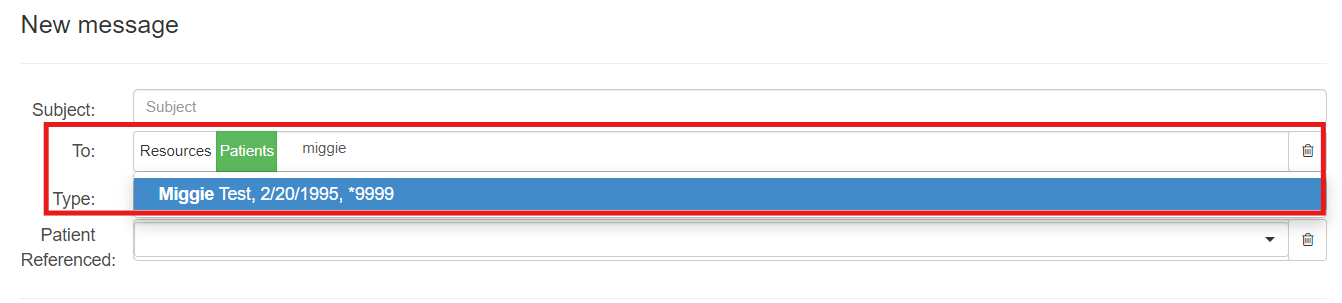
- To send a message to other employees within the practice, the user should select “To: Resources” and then enter the recipient’s name. Similarly, to send a message to a patient, the user should select “To: Patients” instead of “Resources.”
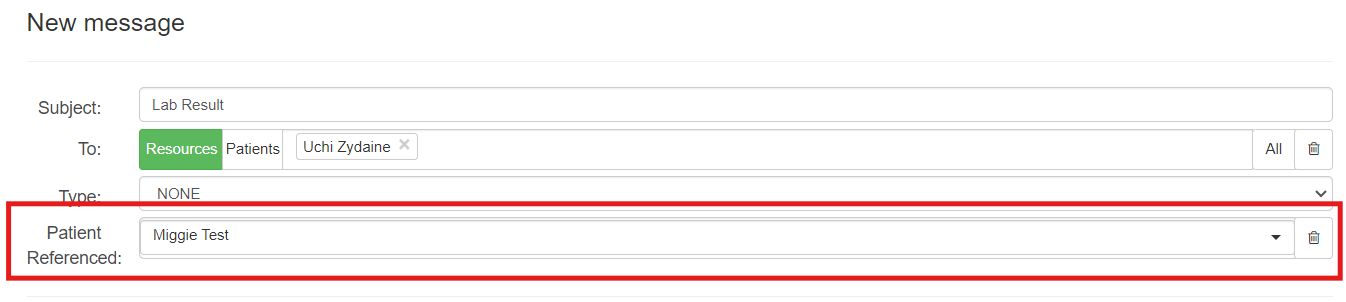
- To make the message available on the patient’s EMR All Notes & Documents page, type the patient’s name under Patient Referenced.
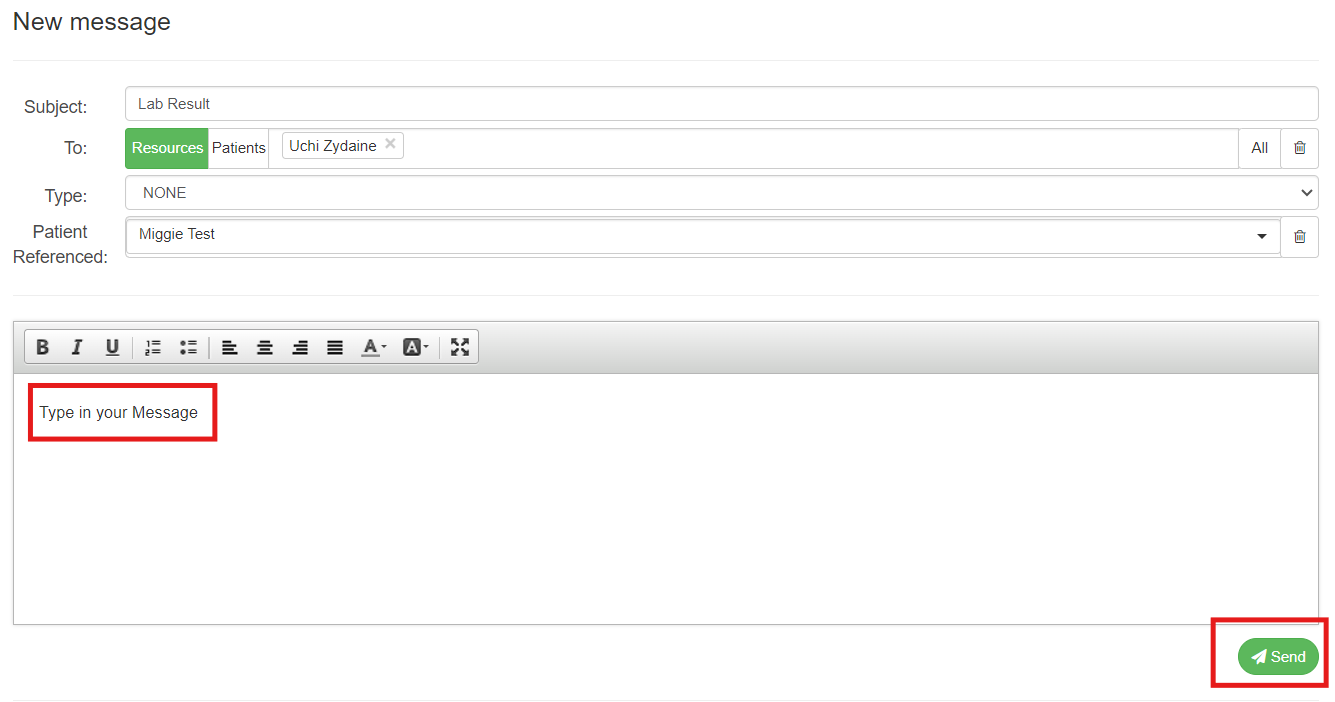
- Lastly, the user can type in the Message on the box below and once done, select the “Send” tab.
- Sent messages will be saved on the Sent section. Deleted messages will be saved under the Deleted section.

- To view the Messages and Tasks of the patient when “Patient Referenced” was completed. Search the patient’s name> go to EMR All notes> select Tasks & Messages tab.

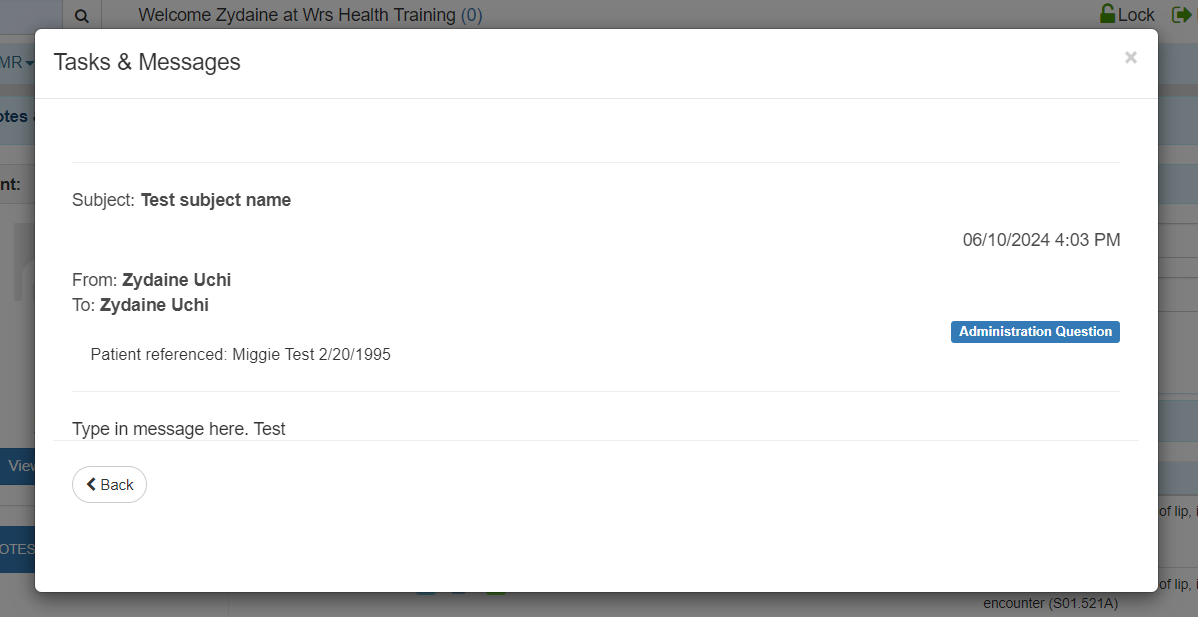
- A pop up box will appear showing the Messages & Tasks of the patient with date and time stamp.
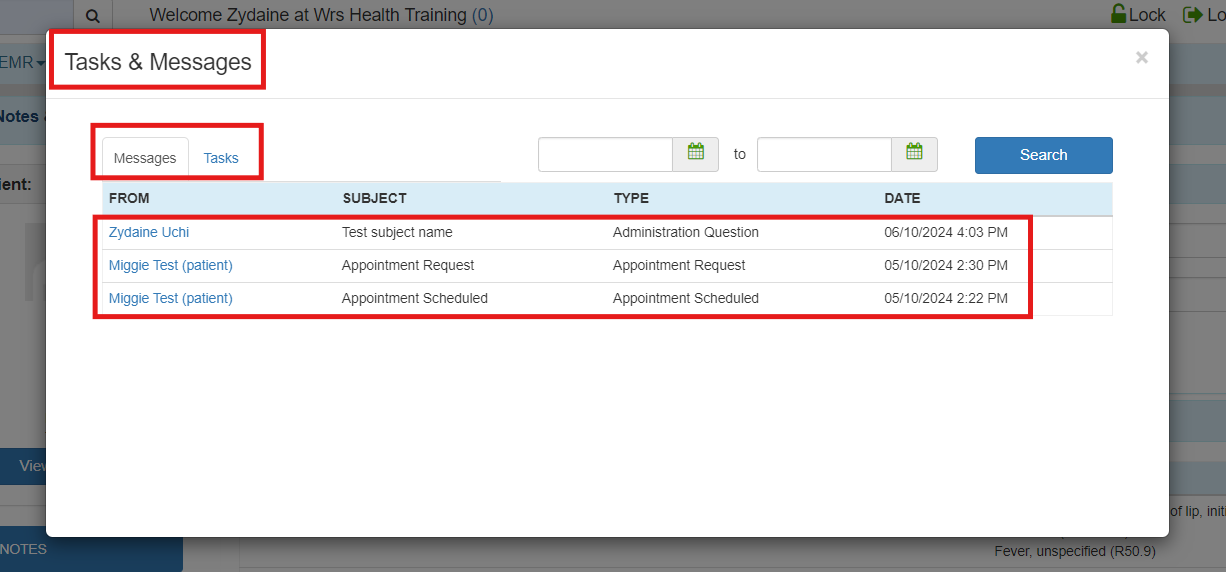
- The user can open the message by clicking on the patient’s name, allowing them to only preview the message.