
FAX QUEUE MANAGEMENT
Matching Documents to Patient’s chart
GO TO
Documents Tab > Fax Queue

STEPS
- Select the document > Search for the patient > Select the patient name.
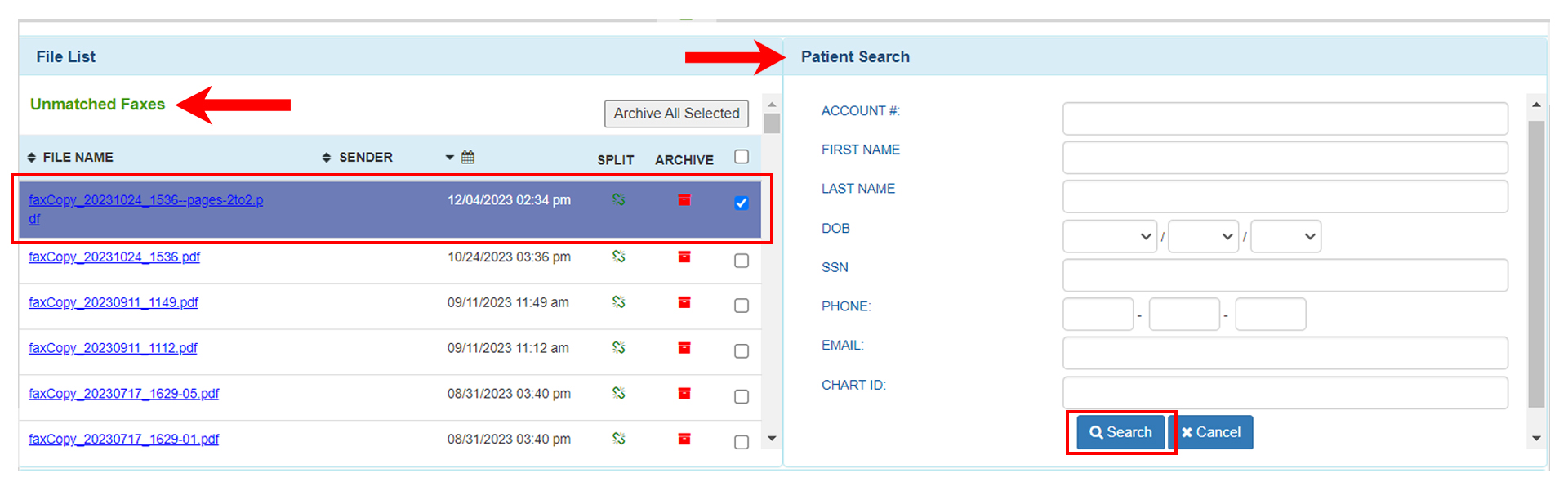
- Choose a category > Once all fields are completed, select Match.
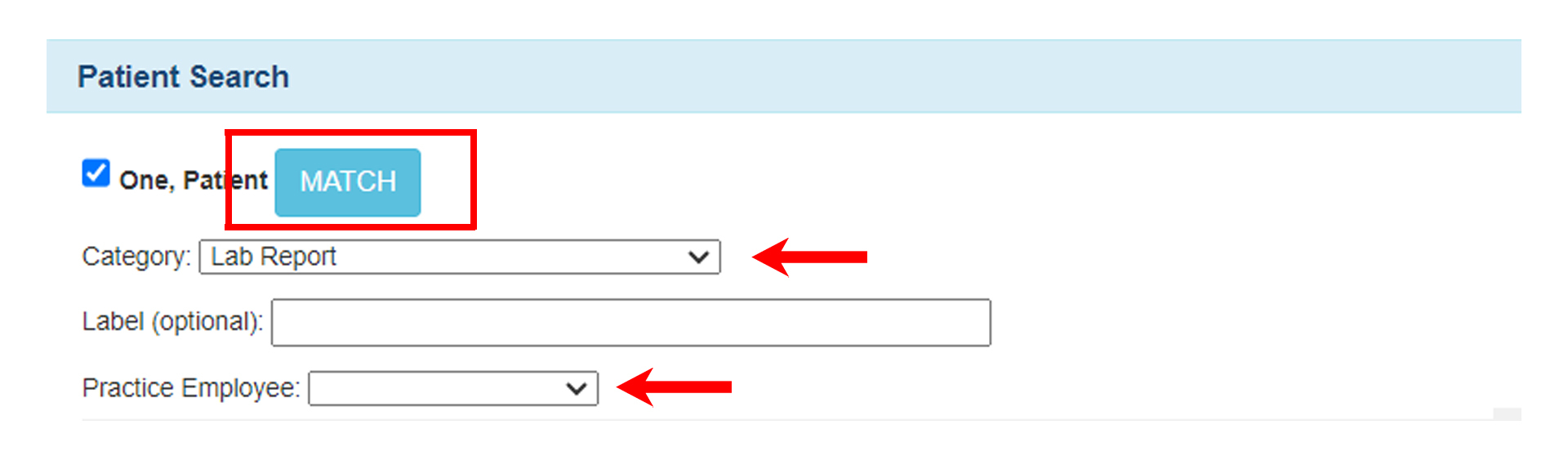
Category- Wherein you can categorize whatever the document is all about.Label (optional) – It’s an optional feature that will allow you to specify the name of the file.
Practice Employee – This allows you to tag an employee in your practice so that they can review whatever the document is all about.
Now, 3 things will happen simultaneously:
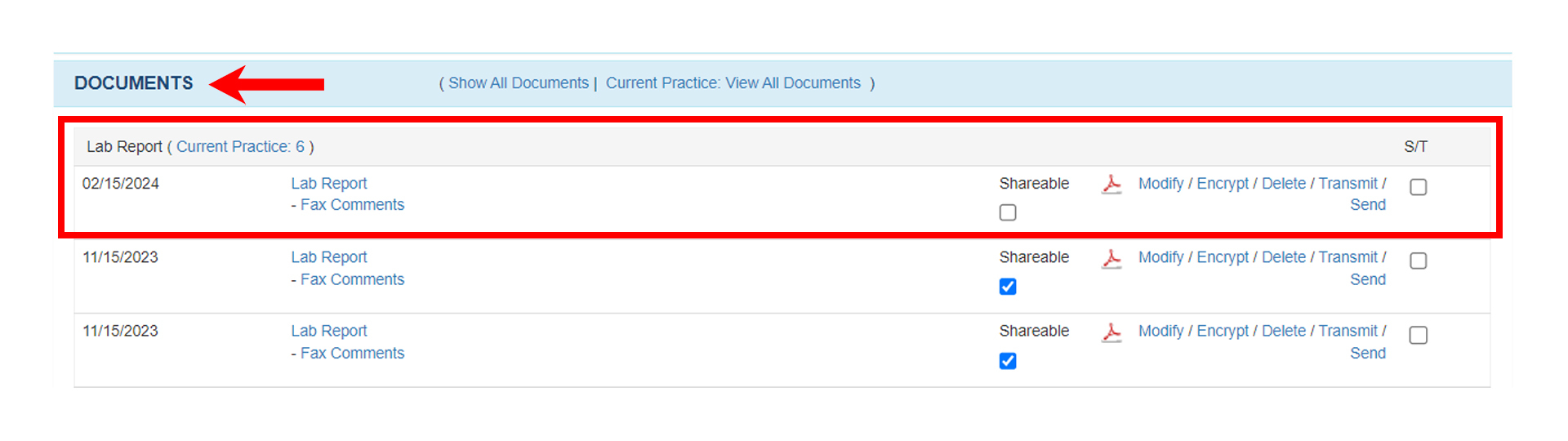
- Matching documents will lead to the applicable fax being removed from the Fax Queue Section.
- Matched documents will be moved to the Patient’s EMR. (point and then right-click on the patient’s name > EMR all notes > Documents).
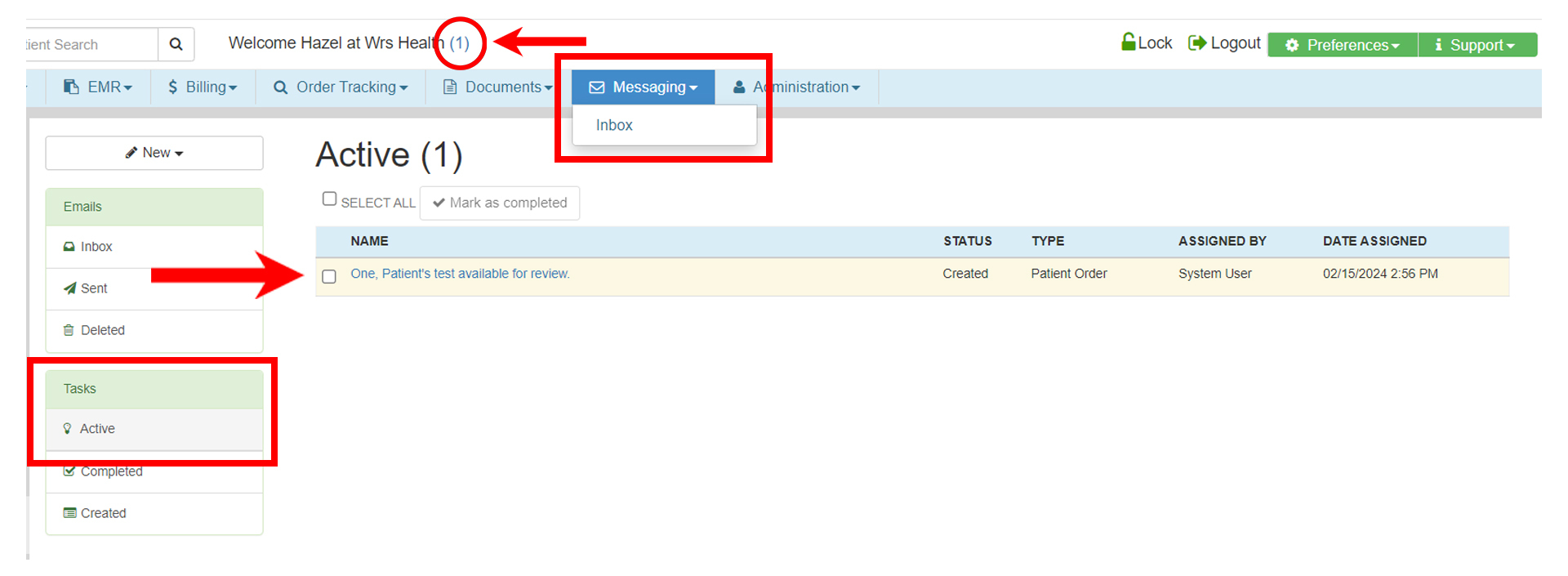
- The assigned practice employee will receive a notification that they have new tasks available.
- Click on the hyperlink value beside the welcome note at the top then you will be directed to the Task Section of Messaging Tab.
- Select Messaging Tab > Inbox – On the left side under Task > Select Active.
- Tasks that are highlighted in yellow are the unread task messages.
NOTES
- Fax Queue is where all the faxes come in electronically to the assigned number of the practice.
- When matching a document, make sure you have checked the box, and it should be highlighted in purple for you to match it to the patient.