Card Payments (Stripe Terminal & Saved Cards)
This guide explains how to process patient payments securely using Stripe Terminal devices,
pay using saved cards, and how to review activity in Payment Logs.
Contents
💳 Card Payment using Device
Payments can be collected during:
- Check-In
- Check-Out
- From the Patient Account (via the Hover Box)
How to Process a Payment
- Open the Patient’s Account page.
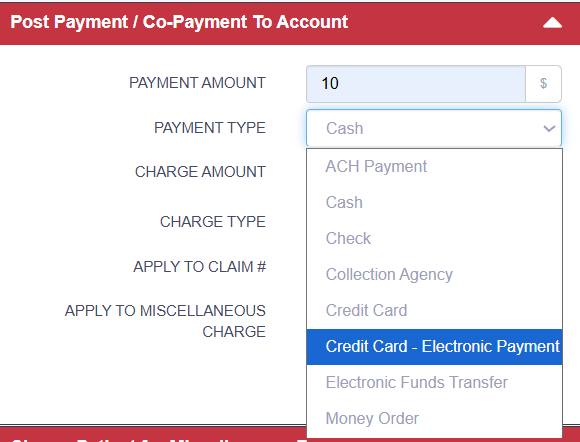
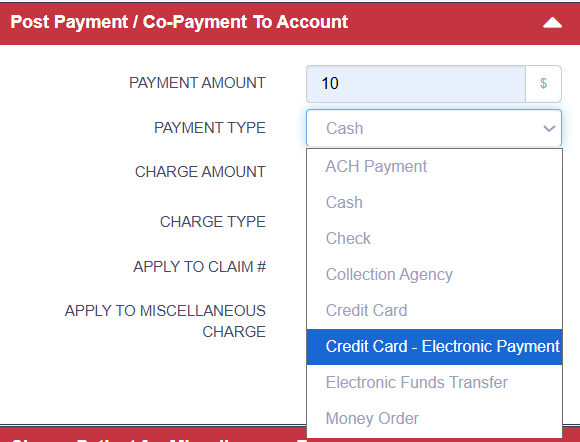
- Enter the Payment Amount.
- Select Payment Type → Credit Card – Electronic Payment.
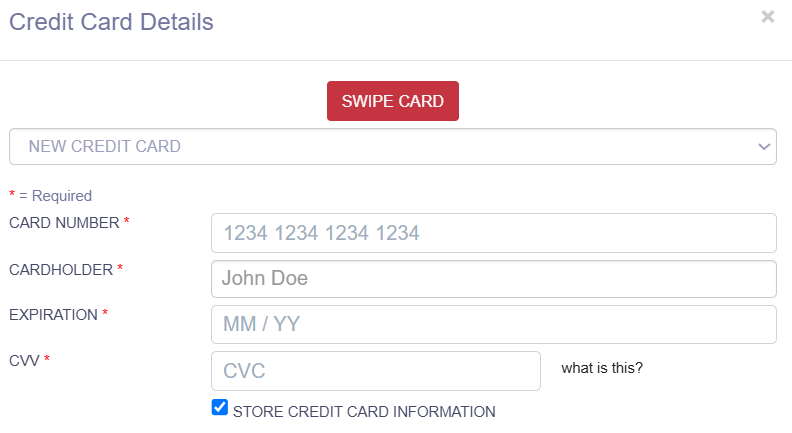
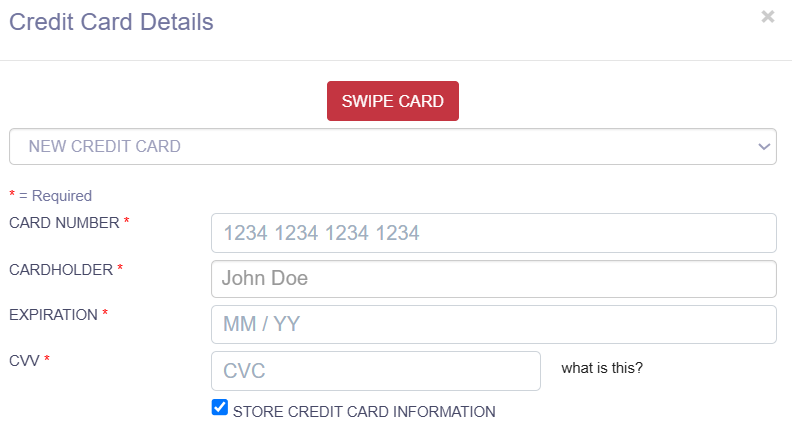
- (Optional) Tick STORE CREDIT CARD INFORMATION if the patient wishes to keep their card on file.
Notes
- Not all debit cards can be stored for future use.
- Use the Device
- Click SWIPE CARD.
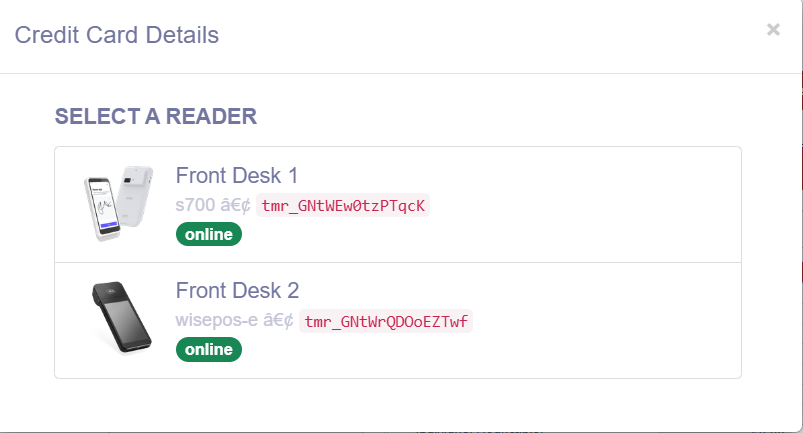
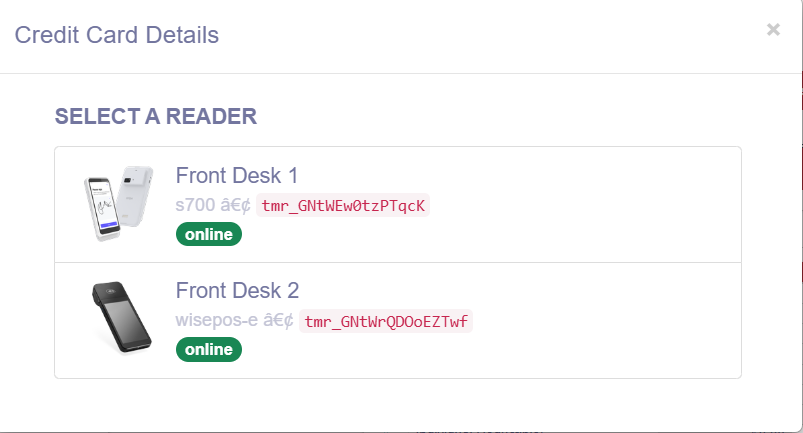
- Select a card reader / device (if multiple are available).
- Ask the patient to complete payment by:
- Tapping their card or device
- Inserting their chip card
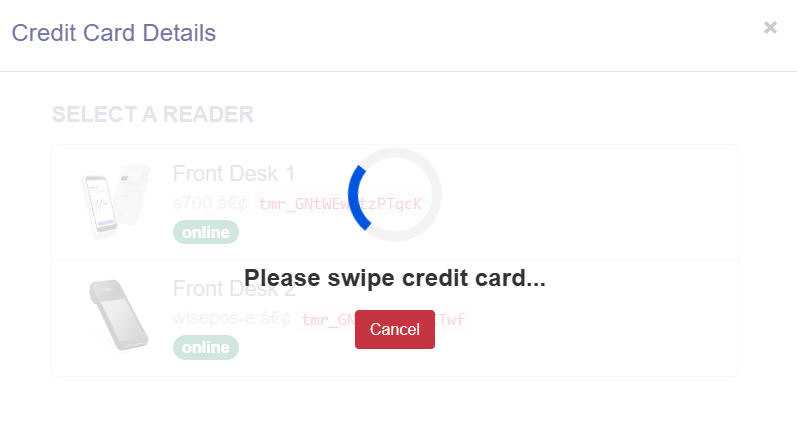
- Swiping their card
Disclaimer:
- The available methods—Tap, Insert, or Swipe—may vary depending on the selected device or card reader. Follow the on-screen prompts for the supported options.
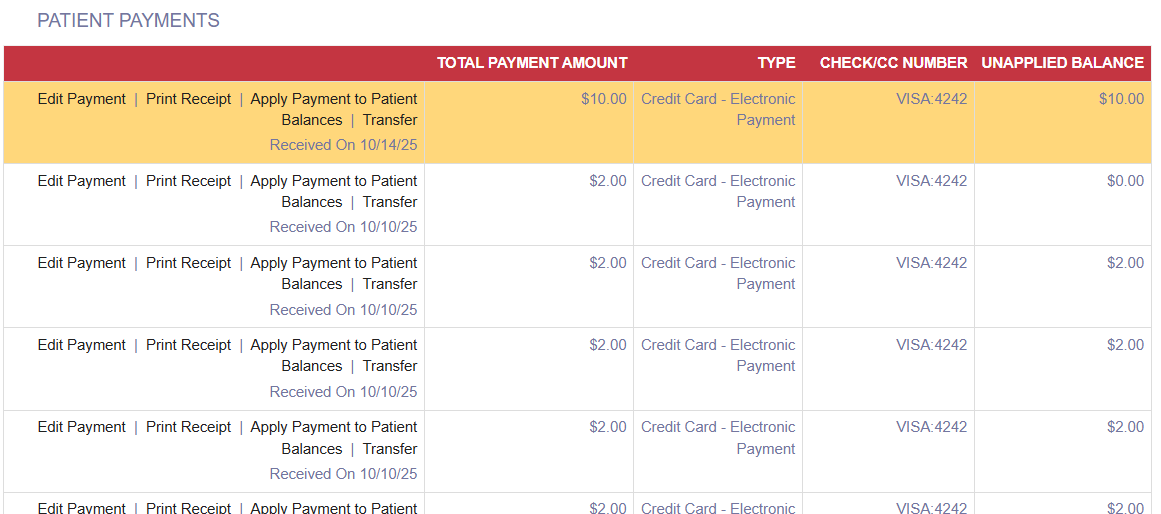
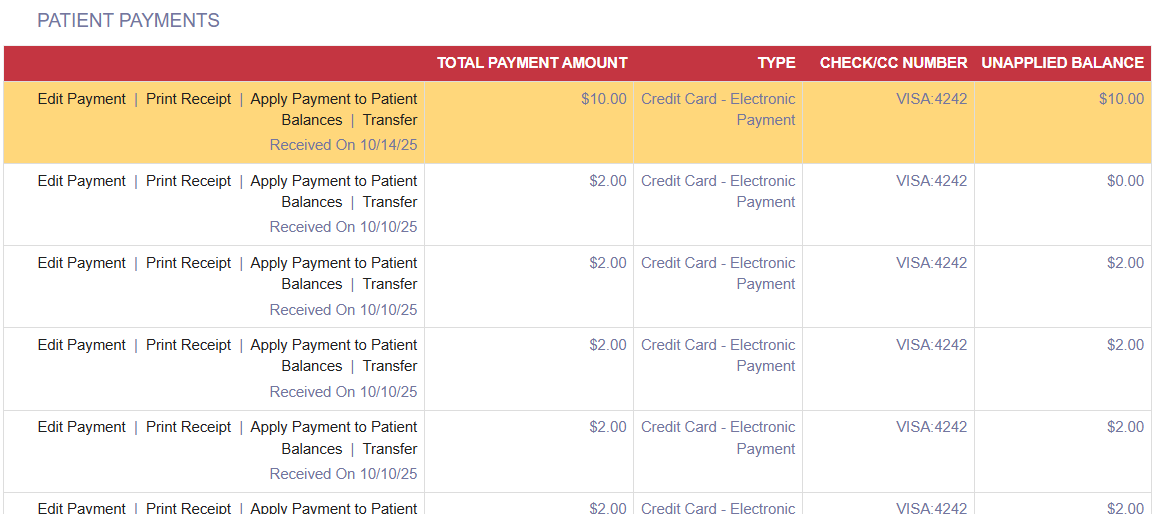
- Confirm Payment
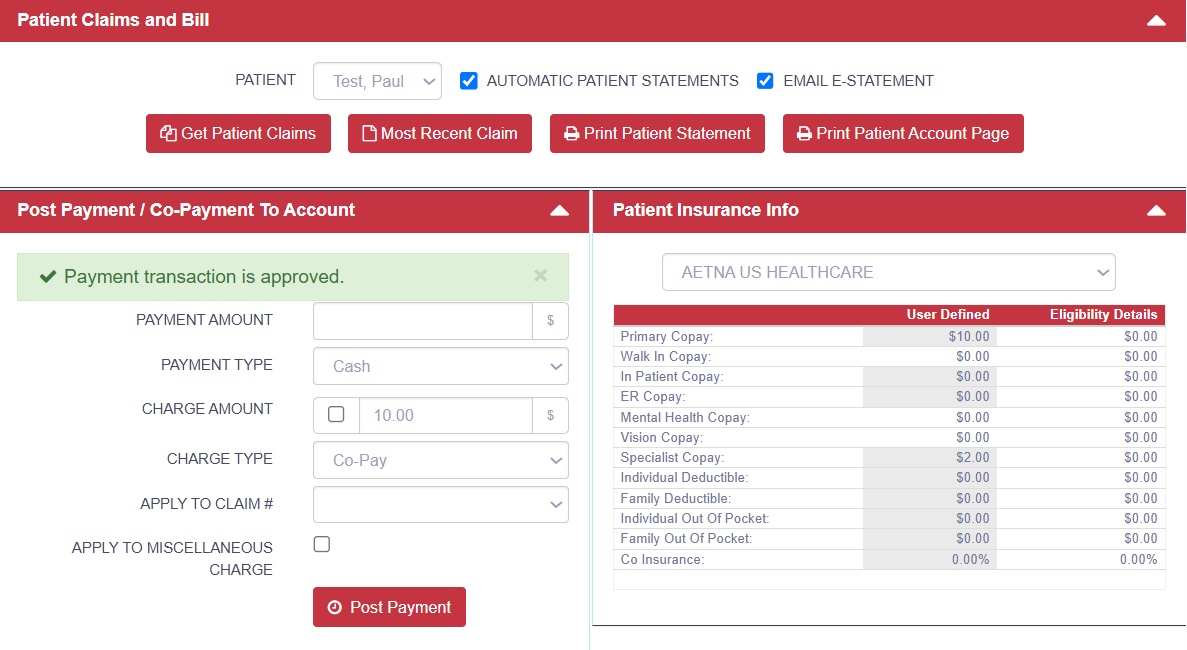
- Once approved, the payment will appear in Patient Payments.
- Print Receipts (Optional)
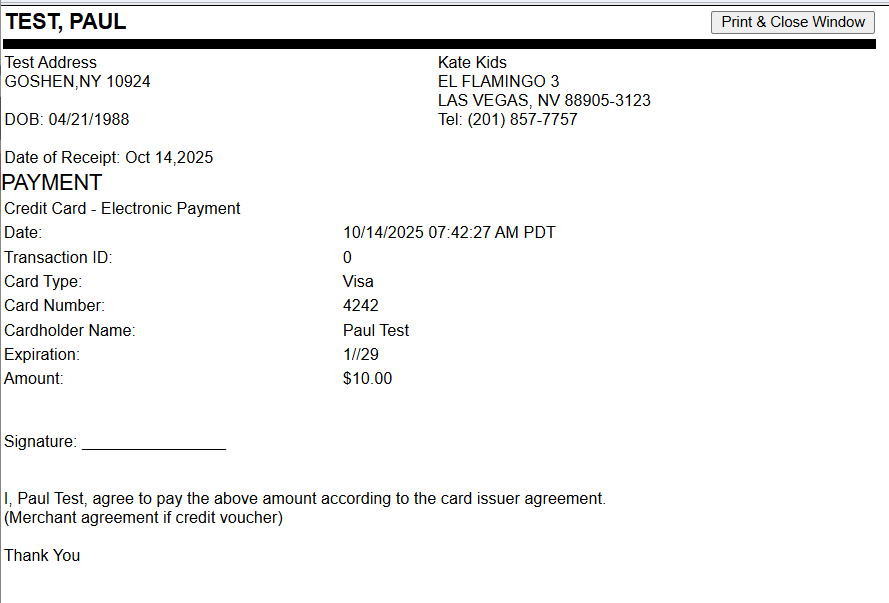
- Click Print Receipt.
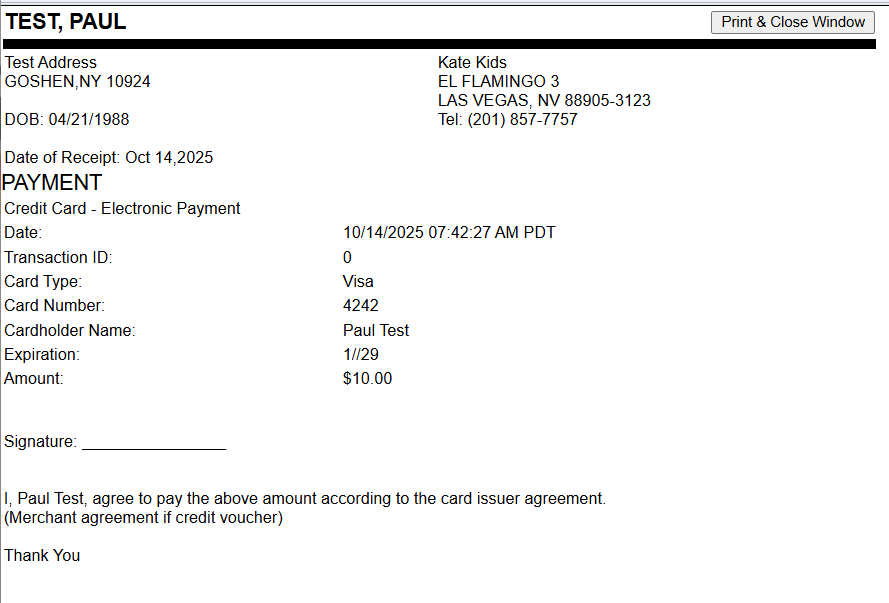
- Two receipts will be generated: Practice Copy and Patient Copy.

Card Payment using Saved Card
You can also process payments using a saved card on file or when the
card is not physically present.
How to Process a Payment
- Open the Patient’s Account page.
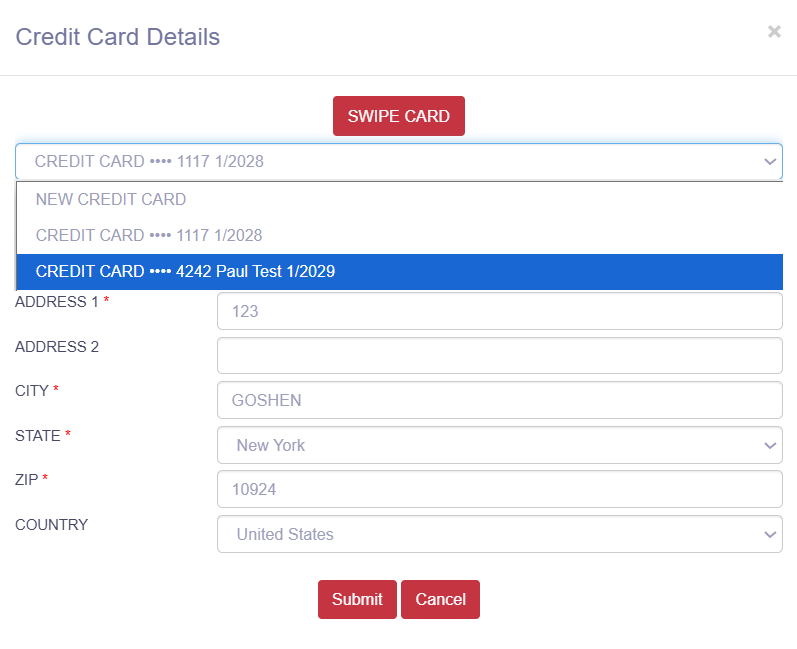
- Choose a Saved Card.
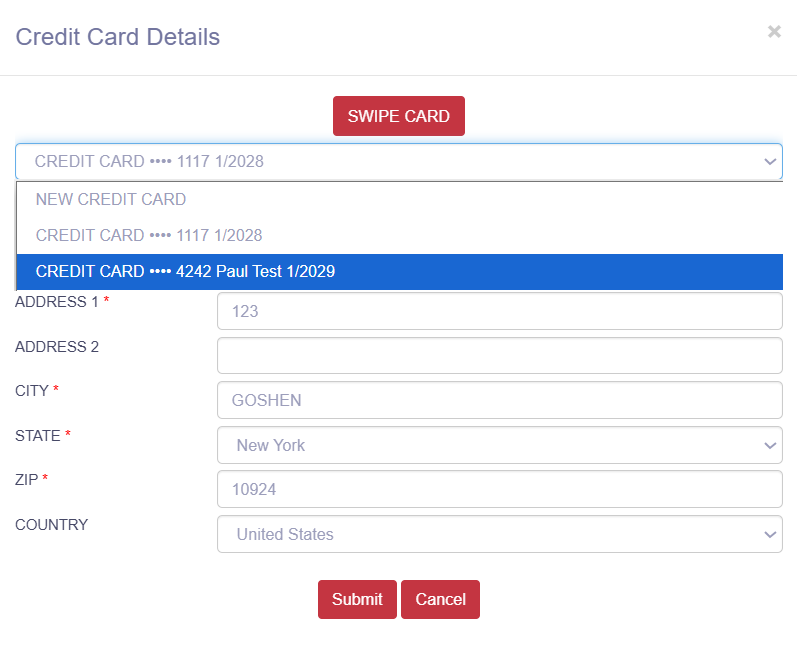
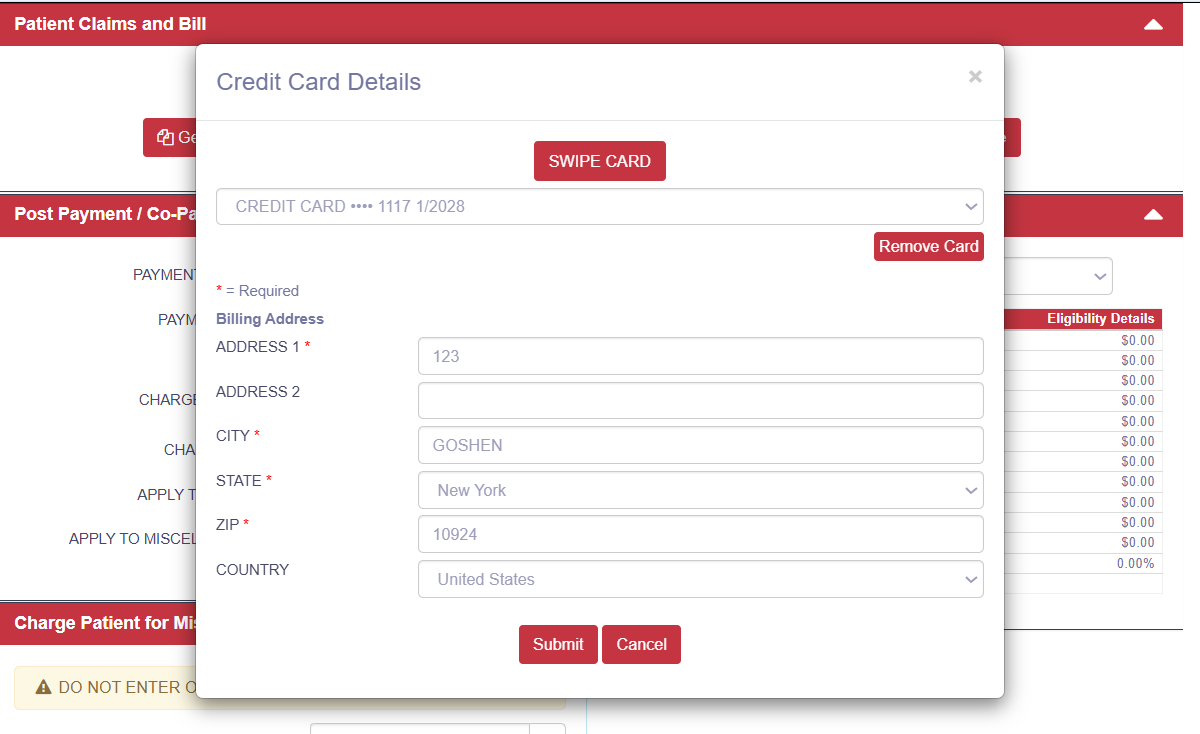
- Update Billing Address
- Remove a Card on File
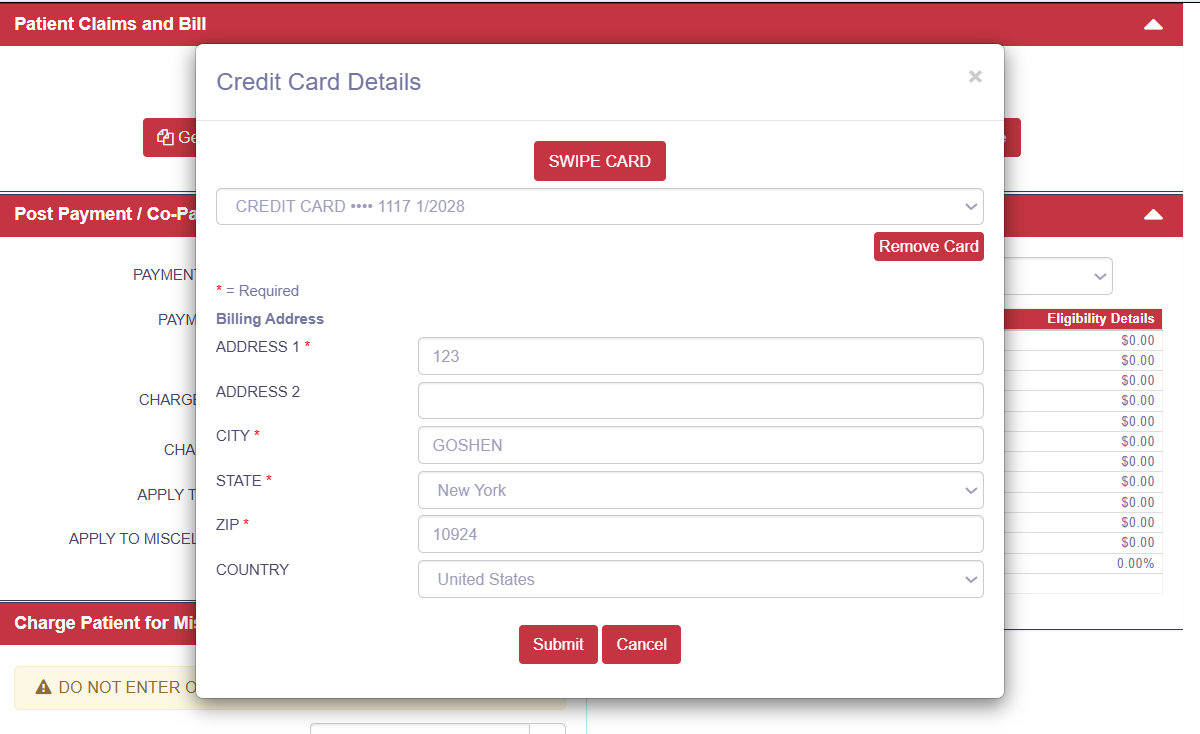
- Click Submit to confirm and return to the Account Page.
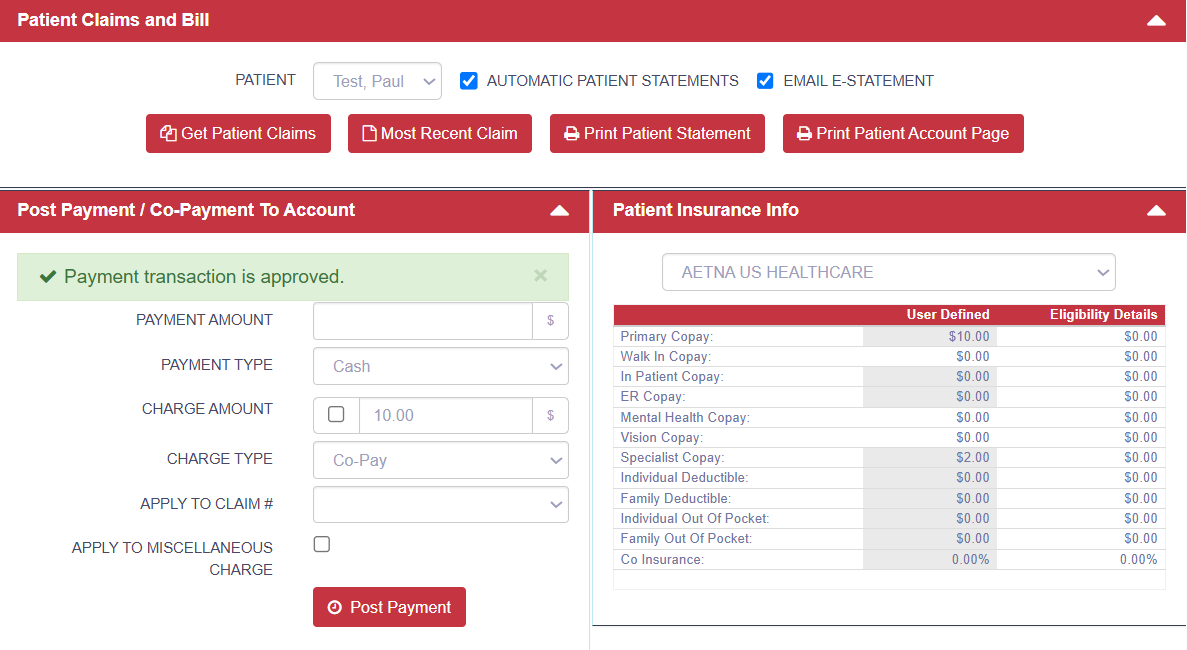
- Confirm Payment
- Print Receipts (Optional)
Payment Logs
Payment Logs provide a centralized view of all Stripe payment activity, including
transactions made through Stripe Terminal devices and payments processed using saved cards.
How to View Payment Logs
- Go to EHR Admin → Billing → Payment Management → Payment Logs.
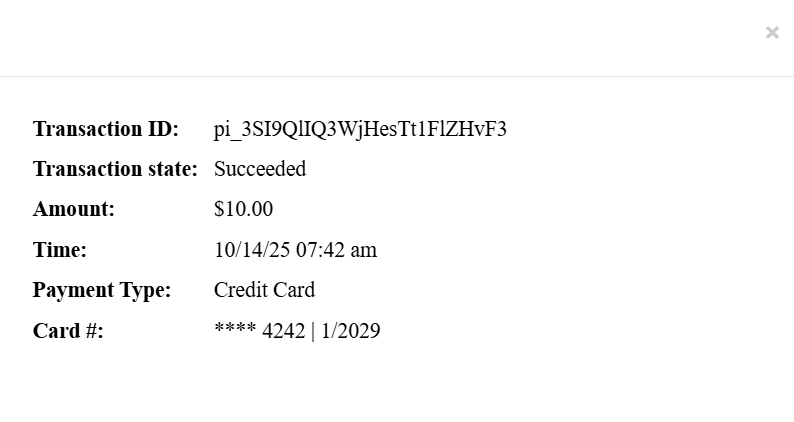
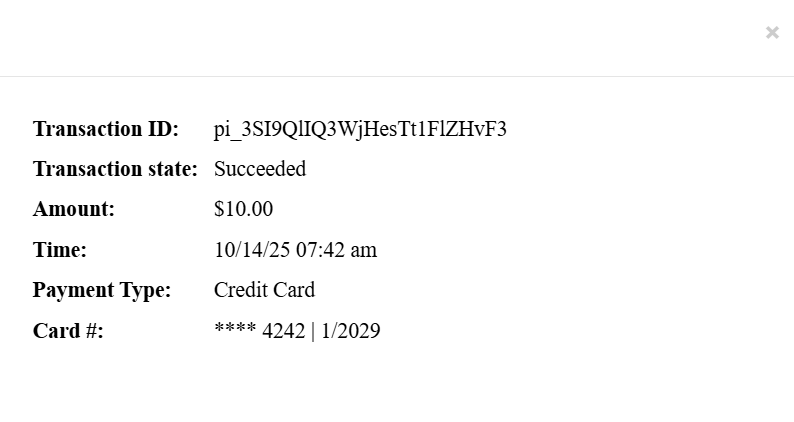
- Locate or search for the transaction and click the Reference ID to view full payment details.
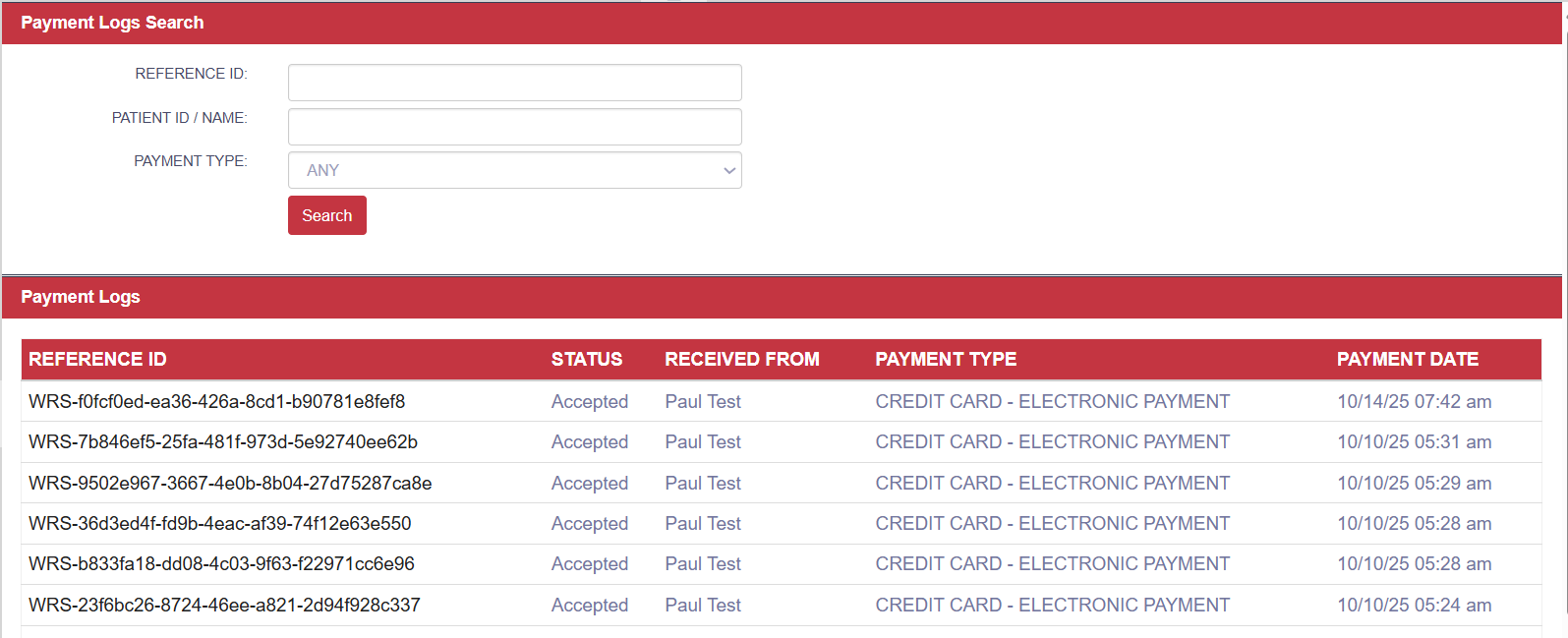
- Each log entry displays the transaction status, including:
- Accepted / Approved
- Cancelled
- Voided
- Refunded
- Failed