Admin Guide: Enable BI & Configure Dashboard Access
This guide explains how to:
- Enable Business Intelligence dashboards for a practice
- Grant access to dashboards based on resource
Enable Business Intelligence for a Practice
Activate BI Dashboards for a specific practice so users can access analytics.
Steps
- Go to Admin → Search for the practices
- Navigate to Account Management
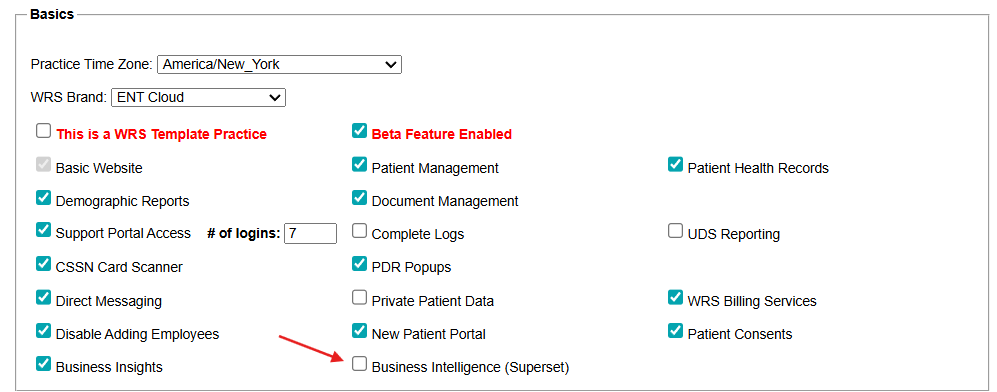
- Navigate to Basics Section
- Select Business Intelligence (Superset)
- Click Save
Results
- Business Intelligence dashboards become available in the navigation menu of the EHR Practice Admin

- Eligible users can now access dashboards (based on user permissions)

Assign Dashboard Access by Resource
Control which dashboards each user can access.
- Go to Administration → Resource Management → Resource Setup
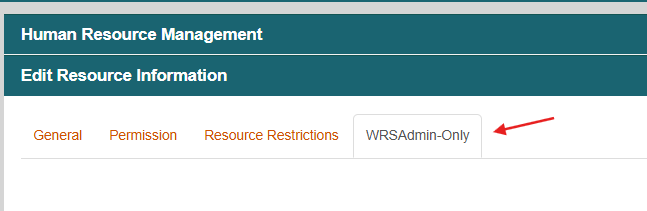
- Navigate to Edit Resource Information
- Navigate to WRSAdmin-Only
- Locate BI Dashboard Permissions
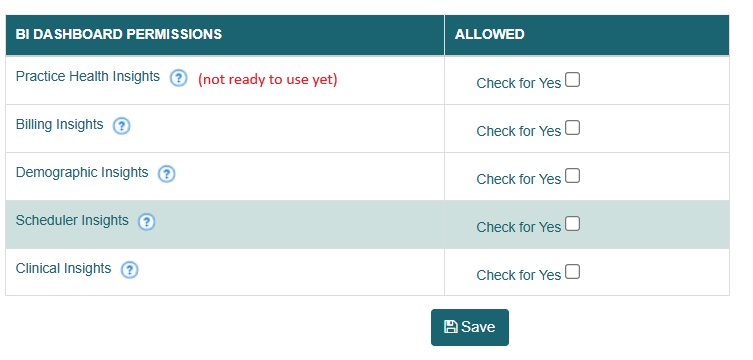
- Assign access to all or specific authorized dashboards below:
- Billing Insights
- Demographic Insights
- Scheduler Insights
- Clinical Insights
- Click Save.