
To: Internal WRS Health Team
From: WRS Product & Development Team
Date: 10/08/2026
Re: Orders & Proedures 2.0
Items in This Release
- Orders & Proedures 2.0
Orders & Procedures 2.0 refreshes the existing Orders & Procedures (O&P) section in the EHR with a cleaner, more intuitive interface designed to make common actions easier to find and use.
The core O&P workflow remains familiar, while several existing controls have been repositioned to improve navigation and usability. The update also introduces Superbill category filtering, making it easier to find relevant items.
The changes below highlight what is new, what has moved, and how these updates affect the way users work in Orders & Procedures.
What’s New
Orders & Procedures 2.0 introduces the following enhancements:
- Refreshed user interface for a cleaner and more intuitive experience
- Improved organization of actions and controls for easier access
- Streamlined navigation within the Orders & Procedures section
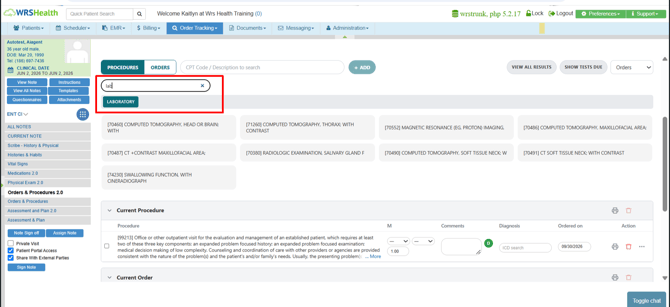
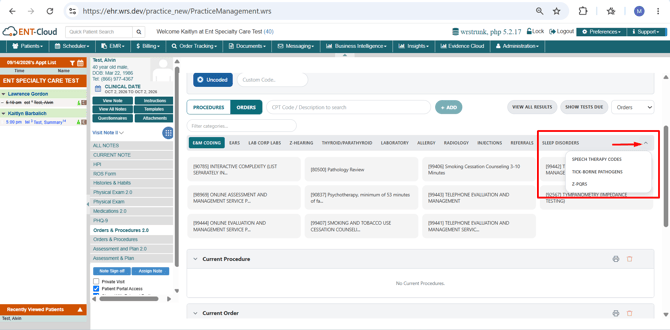
- Superbill category filtering to help users quickly find relevant Superbill items
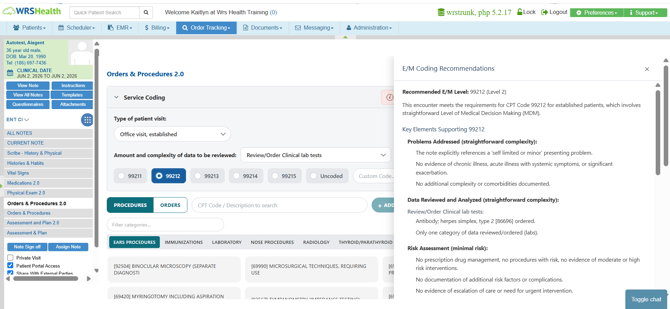
- Right-side E/M Recommendation panel so recommendations can be reviewed without leaving the note
Key Changes
|
Feature |
Previous Orders & Procedures |
Orders & Procedures 2.0 |
|
Get E/M Recommendation |
Opened in a separate browser tab, taking the user away from the note |
Opens in a right-side panel, allowing users to review recommendations without leaving the note. |
|
Superbill Category |
No filtering was available. |
Superbill items can now be filtered by category. |
|
Other Actions |
Accessed by right-clicking an added order or procedure. |
Available in the Actions column for each order or procedure. This includes the order history, enter result, view result, close test, add to task, add to continuity care record, further action. |
|
Save / Save & Next |
Located at the top of the page, between the Order and Procedure sections, and at the bottom of the page. |
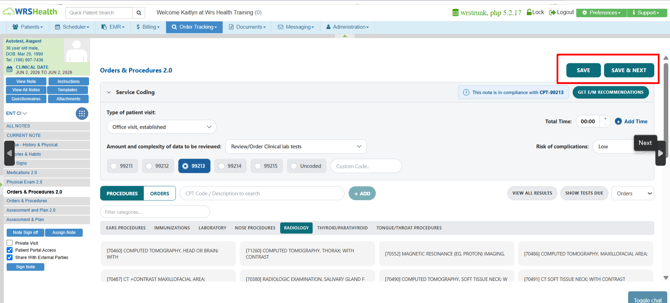
Available in the top-right and bottom of the page |
Several familiar controls have been repositioned in Orders & Procedures 2.0 to create a cleaner and more intuitive workflow. These are intentional UI/UX changes—not removed functionality. Existing actions remain available, but some may now be accessed from a different location.
What This Means for Your Practice
- E/M recommendations can now be reviewed in a right-side panel without opening a separate browser tab.
- Superbill items can be filtered by category to make selection easier.
- Order and procedure actions are now visible in the Actions column instead of being accessed through right-click.
- Save and Save & Next are available from the top-right and bottom of the page.
- The overall O&P workflow remains familiar while the interface provides a more streamlined experience.
How It Works
- During documentation, access Orders & Procedures 2.0 directly within the patient note. Currently, this note section is only available for AI Scribe Note format.
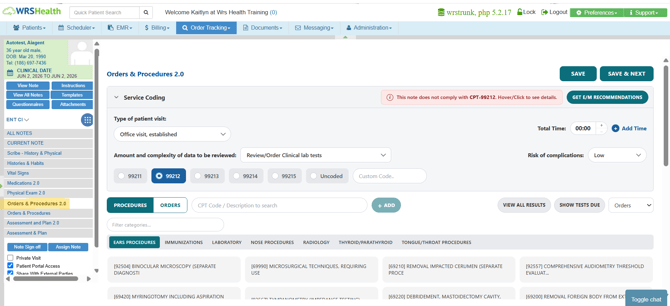
- When you need E/M Recommendations, click the button to open them in a right-side panel—without leaving the note or opening another tab.
- Use the search bar to quickly find and filter Superbill items.
- If multiple Superbill categories are available, click the dropdown arrow to select the category you need.
- To delete an item or perform other functions, go to the Actions column, click the ellipsis (⋯), and select the action you want.
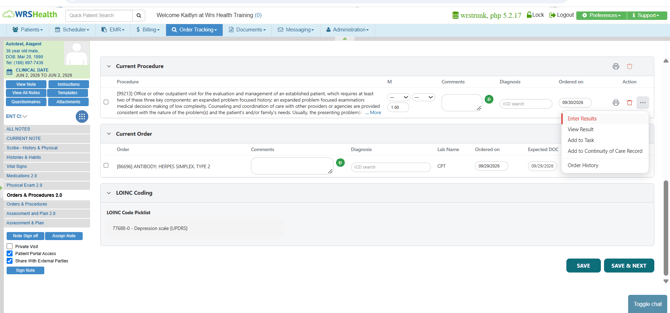
- When you're finished, click Save or Save & Next. Both options are conveniently available at the top-right and bottom of the page.
For questions, additional information, or app activation, please contact your Account Manager.