NOTE PERMISSIONS
How to select preferred types and a default note type
To provide permissions to staff to view, create and modify contents of unsigned notes .
- Go to Administration > Resource management > (Name) > Permission
- EMR > NOTE ACCESS > PRIVATE NOTES and SHARED NOTES
- General Permissions > Patient > Tick VIEW checkbox
- Click SAVE
- Have the staff log back into WRS. The staff should be able to populate patient's name by using the patient search tab.
- From the Appointment List (left side of the screen), right-click the patient's name then select Create New Note
- From recently Viewed Patients (lower left of screen), right-click the patient's name then select Create New Note
- From Patient Search Results page, right click the patient's name then select Create New Note
- From EMR All Notes page, click Create Note
- Moving in the patient to the Exam Room (click Move To Exam Room button) will also create a new note
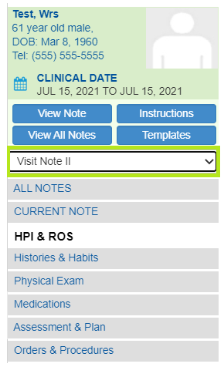
1. Inside the open (unsigned) note, click the current note type dropdown
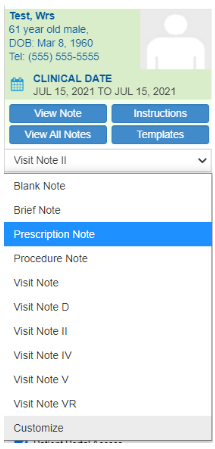
2. Select preferred note type from the options list
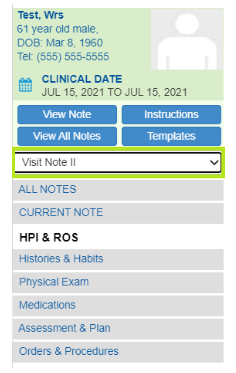
1. Inside the open (unsigned) note, click the current note type dropdown
2. Select Customize from the options list
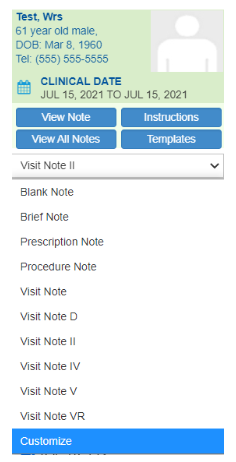
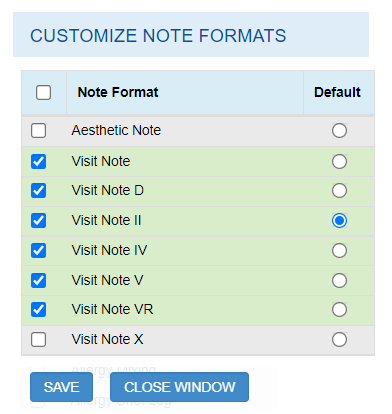
3. Tick the boxes beside preferred note formats and select one as the default