This helps WRS Admin review how note sections are structured, grouped, reused, and maintained across documentation templates. Users can create groups, classify sections, move sections between groups, and archive or unarchive sections as needed.
Access Note Section Management
- Login as WRS Admin
- Navigate to EMR Management → Note Section Management
- Users can search for note sections, update group names, modify note section names, move note sections between designated groups, and archive or unarchive sections as needed.
- The system also includes a Last Used Date to help users identify when a note section was last used.
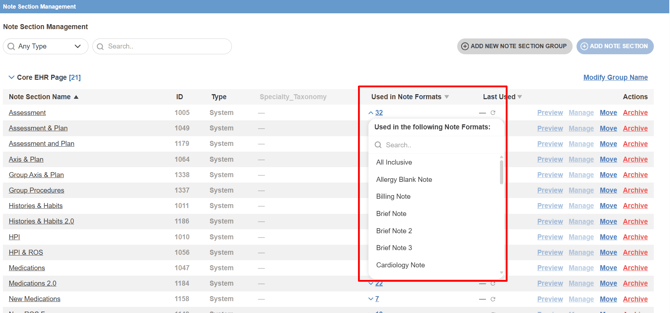
Add New Note Section Group
- From Note Section Management, there are default groups available:
- Core EHR Page
- LHC Forms
- Physical Exam Pages
- Unique Pages With Specific Intent
- Uncategorized
Note: New note sections will appear under this section by default. Once all note sections are moved into an assigned group, this section will no longer appear.
- Click Add New Note Section Group to create a new group.
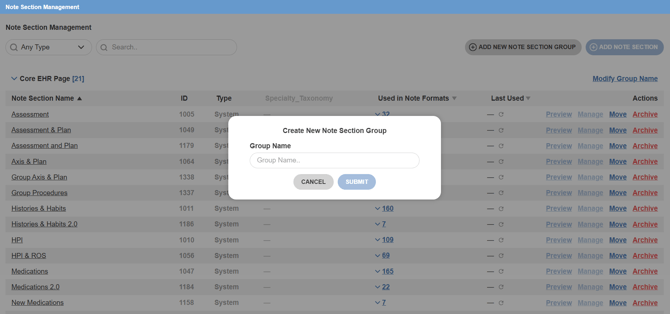
- Simply provide a Group Name, then Submit
Move Notes to a Group
- To move a note section to another group, search for the note section using the available filters or the search box.
- Once the note section is located, click Move.
- A pop-up window will appear. From the dropdown, select the group where the note section should be moved.
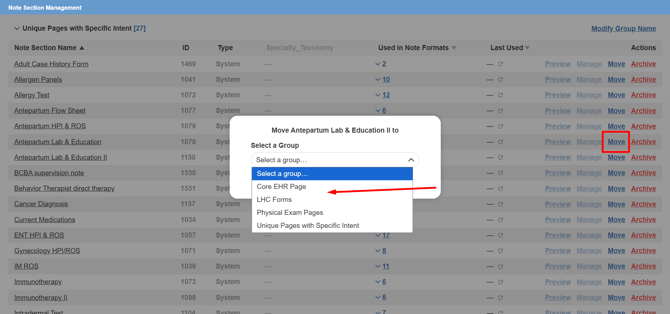
- Click Submit to save the change.
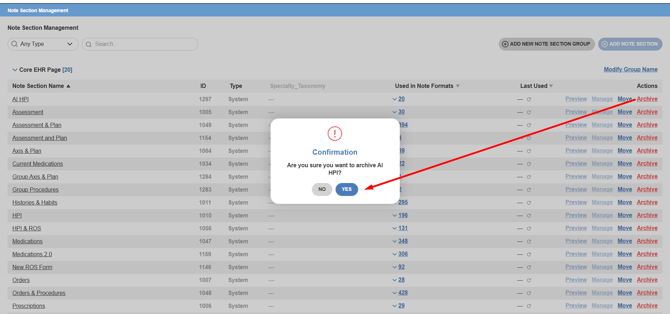
To Archive a Note Section
- Go to the Note Section Management page.
- Search for the note section using the available filters or the search box.
- Once the note section is located, click Archive.
- Confirm the action, if prompted.
- The note section will be moved to Archived Note Sections.
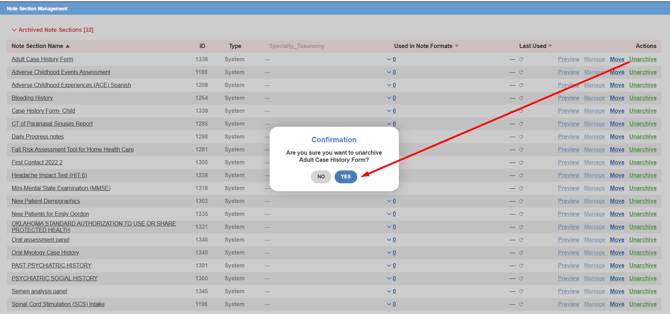
To Unarchive a Note Section
- Go to Archived Note Sections.
- Search for the note section you want to restore.
- Click Unarchive.
- Confirm the action, if prompted.
- The note section will become available again for use and management.