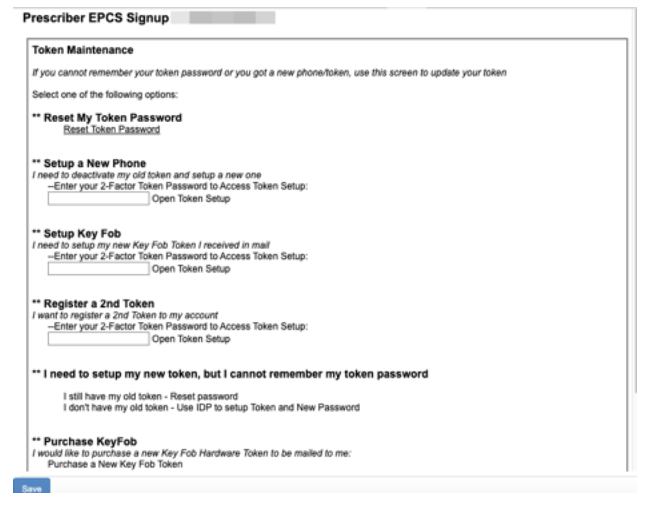
What are Software and Hardware token??
The Software token requires you to download and install a Smart Phone App from a third party company. The App download is free but additional fees will apply on your e-prescribing bill for the software token. You must have a SmartPhone that is compatible with the software (iPhone, Android, Blackberry, Windows mobile). All cell phone charges (including data usage) will be your responsibility.
The Hardware Token is a small Key Fob token you carry with you that has a 2 Factor signing app on it. The token can only be mailed to your verified home address and can take up to 5-7 business days to arrive. Additional charges will apply for the hardware token.
*** You may attach the screenshots of the Tokens.
Can you explain more about the fees?
WRS uses a third party, MD Toolbox, that charges WRS for maintenance of this module. This is the pricing for EPCS.
Soft Token is $ 98.00
Hard Token is $ 142.00
Monthly fee $ 28.00
The token and the monthly fee is per provider and MD Toolbox doesn't have part time fees. Please note that the "token" is a one-time fee, only the monthly cost ($28) will reflect as monthly fee. WRS does not have hidden administrative or setup fees, from MD toolbox we transfer the fees to the practices.
So if I do the phone app - I still use my desktop computer and open WRS and send via the usual way in a note? Either way I need to have some sort of FOB or app to be able to do it and I am not sure how the process works...I did not see a tutorial...Is there one?
Sending controlled medications is still done within the EMR, the usual way like sending non-controlled, except that there's a step where the provider needs to enter code generated from the token to complete the electronic prescription. We have attached the workflow guide on how to send controlled medications using EPCS, also I have attached screenshots of the software and hardware token and how the security code and credential ID appears on each. The Software token can be downloaded on any smart phone (iPhone, Android, Blackberry, Windows mobile). All cell p hone charges (including data usage) will be your responsibility.
*** You may attach the screenshots of the Tokens and the guide on how to send controlled medications via EPCS.
I have an android phone. I can also see putting the key Fob in my key chain. Can I use either soft or hard token.
You can choose either or both tokens. Depending on your situation. The system allows provider to set up 2 tokens. If I may suggest, try one token first then enroll or apply for a second token in the future.
If a practice is to choose only one of the two tokens, which is better in terms of getting the work done more efficiently when prescribing a controlled substance.
Both tokens has the same level of efficiency in generating a unique security code that is used to sending controlled medication/s.
EPCS REGISTRATION AND ENROLLMENT COMMON ISSUES
1. Provider has trouble completing ID Proofing. Experian may have outdated information for the provider. We have found in many cases prescribers can complete the process if they enter a previous address.
Advise the provider to go back through ID Proofing and try using a previous address.
2. Provider has not applied their 2-Factor activation code after setting up their token.
Ask if the provider has received the final verification/activation code either to their verified phone number for software token, or mailed together with the key fob or hardware token, if not, advised we’ll reach out to MD Toolbox support to resend the code.
*** Please note, that oftentimes, MDToolbox support send email for a particular provider regarding ID Proofing Assistance, EPCS activation code assistance and Activation code sent email even before providers inquire or open tickets regarding above issues ***
3. Registering Provider has no EPCS access. (eg. DR. B)
Any provider who is already EPCS enabled (eg DR. A) can log in and go to Administration> Medication Setup> EPCS access control.
- Tick all check boxes for Dr. B
- First User will be (the one logged in – Dr. A).
- Select Second signer: Dr. B.
- Enter email address for the second signer. An approval code will be sent to that email address.
- Click SAVE button at the upper left of the screen.
- Enter the approval code sent to the email.
- Click save or submit button.
- Provider logs in to his/her account and goes to Administration> Medication setup> open EPCS Access Control.
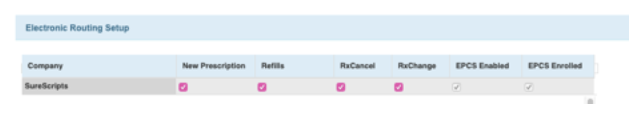
- Go back to Administration> Resource Management> Resource Setup> (user's name)> electronic routing page, and verify if EPCS enabled box is checked.
4. If EPCS is still not enabled after completing the steps and after going to ADMINISTRATION > MEDICATION SETUP > EPCS ACCESS CONTROL and going to ELECTRONIC ROUTING PAGE.
- Log in as provider to check if the EPCS enabled box is still unchecked even if enrollment steps were completed. The screenshot below confirms the provider has completed the registration and enrollment steps (1 – 4).
2. Log out as the provider, then log in as SELF, go to ELECTRONIC ROUTING page of the provider then uncheck RX Cancel and RX Change checkboxes, then hit SAVE. Then log out.

3. Log in again as the provider again, then go to ADMINISTRATION > MEDICATION SETUP > EPCS ACCESS CONTROL then to the ELECTRONIC ROUTING PAGE. The EPCS Enabled should be check by this time. Then log out.
4. Log in again as SELF, go to ELECTRONIC ROUTING page of the provider then check RX Cancel and RX Change checkboxes, then hit SAVE. Then log out
5. Log in again as the provider, then go to the ELECTRONIC ROUTING PAGE. The checkboxes for RX Cancel and RX Change plus the EPCS Enabled and EPCS Enrolled should all be checked now, and the provider can now send controlled medication.