
To: Internal WRS Health Team
From: WRS Product & Development Team
Date: 11/09/2026
Re: Assessment & Plan 2.0
Items in This Release
- Assessment & Plan 2.0
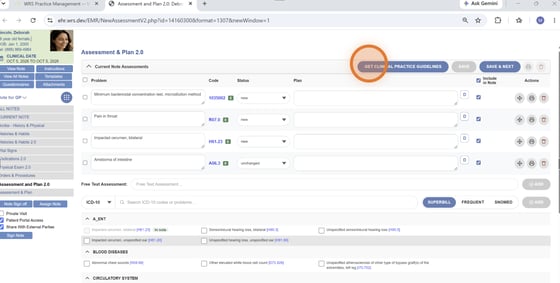
Assessment & Plan 2.0 refreshes the existing Assessment & Plan (A&P) section in the EHR with a cleaner, more intuitive interface designed to make common actions easier to find and use.
The core A&P workflow remains familiar, while several existing controls have been repositioned to improve navigation and usability. The update also introduces drag-and-drop problem reordering and combines the Superbill, User/Practice Frequency, and SNOMED CT options into one compact section.
The changes below highlight what is new, what has moved, and how these updates affect the way users work in Assessment & Plan.
What’s New
Assessment & Plan 2.0 introduces the following enhancements:
- Refreshed user interface for a cleaner and more intuitive experience
- Improved organization of actions and controls for easier access
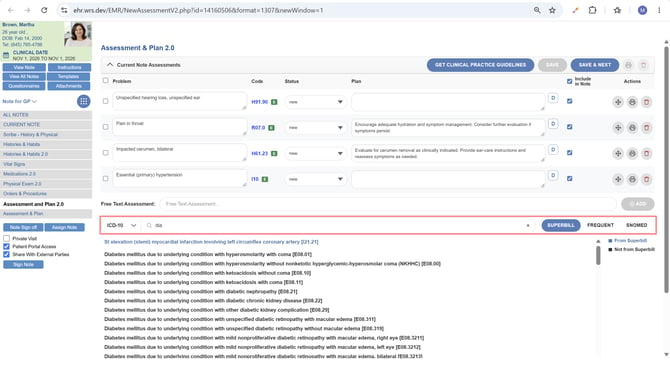
- Combined problem selection section for Superbill, User/Practice Frequency, and SNOMED CT
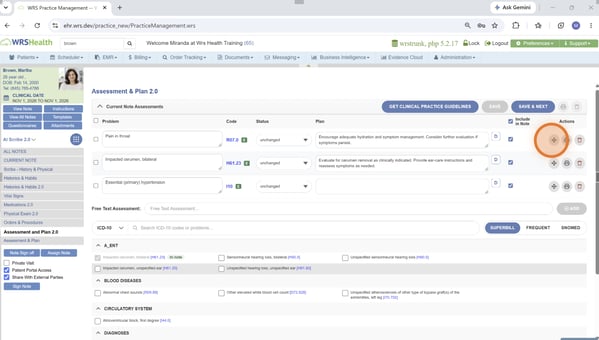
- Drag-and-drop functionality to easily reorder problems
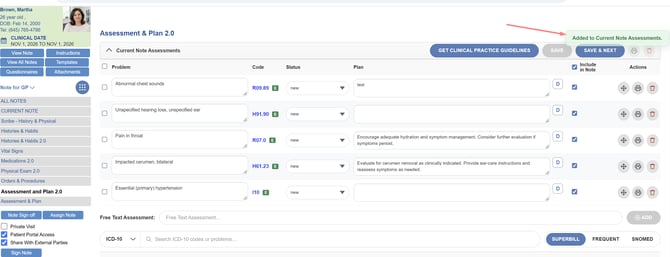
- Confirmation modals after supported actions, including adding, saving, deleting, and setting a default comment
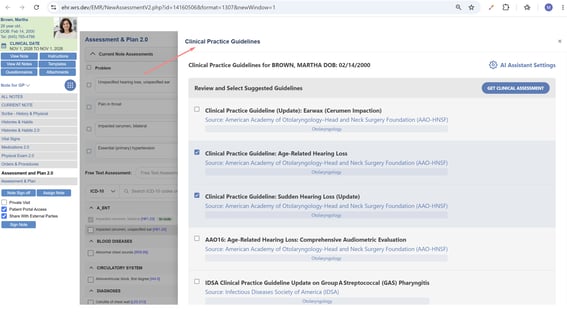
- Right-side panel for Get Clinical Assessment AI Agent, Practice Instructions, and Customize Disposition List
- More compact page layout to reduce unnecessary scrolling
Key Changes
|
Feature |
Previous Assessment & Plan |
Assessment & Plan 2.0 |
|
Problem Reordering |
Manually enter the desired order of problems. |
Drag and drop problems into the desired order. |
|
Universal search bar |
Search was limited to the selected Superbill filter. |
Search across all available tabs from a single search bar. |
|
Problem Selection |
Superbill, User/Practice Frequency, and SNOMED CT were located in separate sections. |
All three options are combined into one section, with the ability to switch between them. |
|
Add to Current Note Assessment |
Located between the problem selection, SNOMED CT, and Superbill sections. |
Repositioned to the middle of the combined problem selection section. |
|
Action Confirmation |
No confirmation modal appeared after an action. |
Confirmation modals appear after supported actions, such as adding, saving, deleting, or setting a default comment. |
|
Get Clinical Assessment AI Agent |
Opened or redirected the user to another browser tab. |
Opens in a tab within the right-side panel. |
|
Practice Instructions |
Opened or redirected the user to another browser tab. |
Opens in a tab within the right-side panel. |
|
Customize Disposition List |
Opened in a separate modal. |
Opens in a tab within the right-side panel, with drag-and-drop functionality to reorder items. |
|
Page Layout |
Required more scrolling to access separate sections and controls. |
Uses a more compact layout to keep commonly used actions together. |
Several familiar controls have been repositioned in Assessment & Plan 2.0 to create a cleaner and more intuitive workflow. These are intentional UI/UX changes—not removed functionality. Existing actions remain available, but some may now be accessed from a different location or through an updated interaction.
What This Means for Your Practice
- Problems can be reordered using drag and drop instead of manually entering their order.
- Superbill, User/Practice Frequency, and SNOMED CT options are accessible from one combined section.
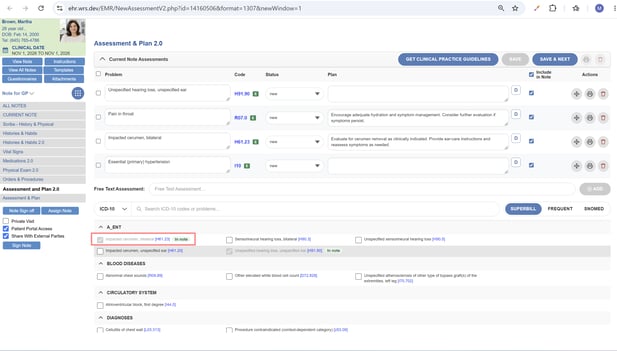
- The Add to Current Note Assessment button is now positioned within the combined section.
- Confirmation modals provide feedback after supported actions.
- Get Clinical Assessment AI Agent, Practice Instructions, and Customize Disposition List open within the right-side panel.
- The overall A&P workflow remains familiar, with a more compact layout and improved access to commonly used controls.
How It Works
During documentation, access Assessment & Plan 2.0 directly within the patient note.
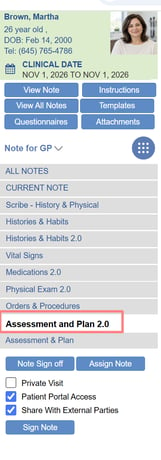
- Open the Assessment & Plan section from the patient’s note to access the refreshed interface.
- Use the combined problem selection section to switch between Superbill, User/Practice Frequency, and SNOMED CT to find and add the appropriate problems.
- Use drag and drop to move problems into the desired order instead of manually entering their sequence.
- Simply select or tick the box for to add the selected problems to the current note assessment.
- Open Get Clinical Assessment AI Agent, Practice Instructions, or Customize Disposition List from the right-side panel without navigating away to another browser tab.
- When performing supported actions, such as adding, saving, deleting, or setting a default comment, review the confirmation modal displayed by the system.
For questions, additional information, or app activation, please contact your Account Manager.